
One of the most effective ways to turn emails into actionable tasks in OmniFocus is to import them as tasks. However, simply dragging and dropping emails directly from an email client into OmniFocus produces poor results: the email body is not preserved, making it difficult to refer back to the original content when completing the task.
The Problem
- Drag-and-drop creates a task with limited or no email content.
- When reviewing the task later, the context needed to take action is missing.
The Solution
The best way to overcome this limitation is to:
- Use the email subject as the OmniFocus task title
- Attach the full email as a file to the task, preserving all content for reference
This workflow is achieved by using two additional macOS applications: Dropzone and Hazel.
Tools Used
1. Dropzone
Dropzone allows you to drag emails from your email client and drop them onto the Dropzone app. When you do this:
- The email is saved as a file
- The file is stored in a predefined folder of your choice
This ensures the full email content is preserved.
2. Hazel
Hazel monitors the folder used by Dropzone and watches for new files. When an email file appears and matches your defined criteria, Hazel automatically:
- Creates a new task in OmniFocus
- Uses the email subject as the task title
- Attaches the saved email file to the OmniFocus task
Hazel:
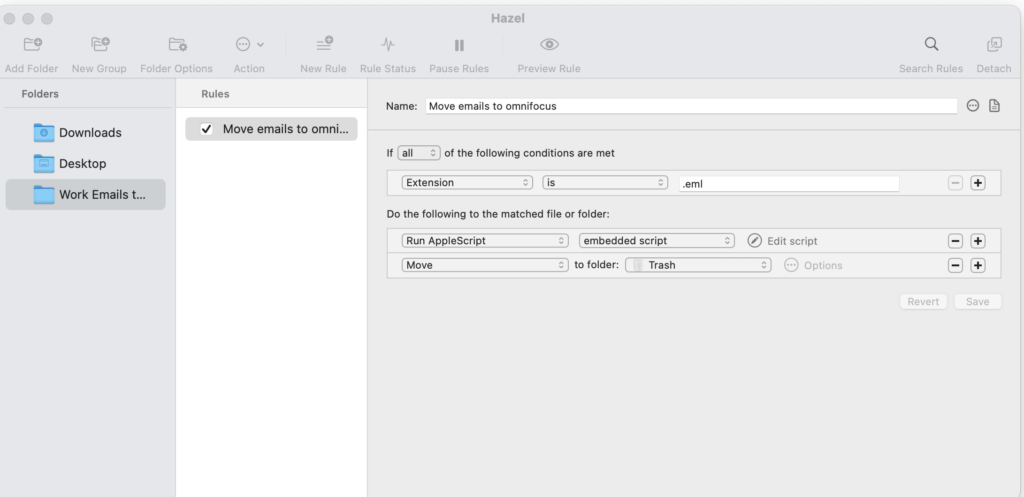
Notice we run an AppleScript, this is the magic script that does the shifting a lifting to give us a really good result and get the omnifocus task behaving as we want it.
Applescript
The AppleScript is where most of the automation happens. It takes the email file from the Finder (placed there by Dropzone and processed by Hazel) and creates a task in OmniFocus, attaching the email and applying your preferred metadata.
Code:
tell application "Finder"
	set _path to (the POSIX path of theFile as string)
	set {_name, _extension} to {name, name extension} of theFile
	set _name to text 1 thru -((count _extension) + 2) of _name

	set theDate to current date
	set theTask to "Review Email - " & _name & ""
	set theNote to return & return & "Imported by Hazel on Macbook Pro - " & (theDate as string) & "
    "
end tell

tell application "OmniFocus"
	tell front document
		set theTag to first flattened tag where its name = "Email Action"
		set theProject to first flattened project where its name = "Work Single Action List"
		tell theProject
			set theTask to make task with properties {name:theTask}
			set note of theTask to theNote
			set myNewDate to (current date) + (2 * days)
			set due date of theTask to myNewDate
			tell the note of theTask
				make new file attachment with properties {file name:theFile, embedded:true}
			end tell
			add theTag to tags of theTask
			return theTask
		end tell
	end tell


end tell
Task Title
set theTask to "Review Email - " & theName
theTask defines the OmniFocus task title
- In this example, the task is prefixed with “Review Email –”
- You could easily change this to something like:
"Email Task - ""Action from Email - "- or remove the prefix entirely
Task Note
set theNote to "Imported by Hazel on MacBook Pro" & return & theDate
theNote sets the note field in OmniFocus
- This is a useful place to record:
- Which machine imported the email (e.g. MacBook Pro or Mac Studio)
- The date and time of import
This information is especially helpful when troubleshooting:
- If an import fails
- If you need to check the bin or recover the original email
Tag Assignment
set theTag to "Email Action"
theTag assigns a tag in OmniFocus
- In this workflow, “Email Action” clearly identifies tasks that originated from email
- You can rename this to suit your system (e.g. Email, Inbox, Follow-up)
Project Selection
set theProject to "Work Single Action List"
theProject determines which OmniFocus project receives the task
- Important: Project names are case-sensitive
- The name in the script must match the OmniFocus project name exactly
Due Date Calculation
set myNewDate to (current date) + (2 * days)
myNewDate sets the task due date
- In this example, the due date is calculated as two days from now
- You can adjust this easily:
(1 * days)for next day(3 * days)for a longer buffer- Or remove it entirely if you prefer to set due dates manually
.